Desktop Turns ON but No Display 2026
Desktop Turns ON but No Display – Complete Troubleshooting Guide (2026)
Introduction
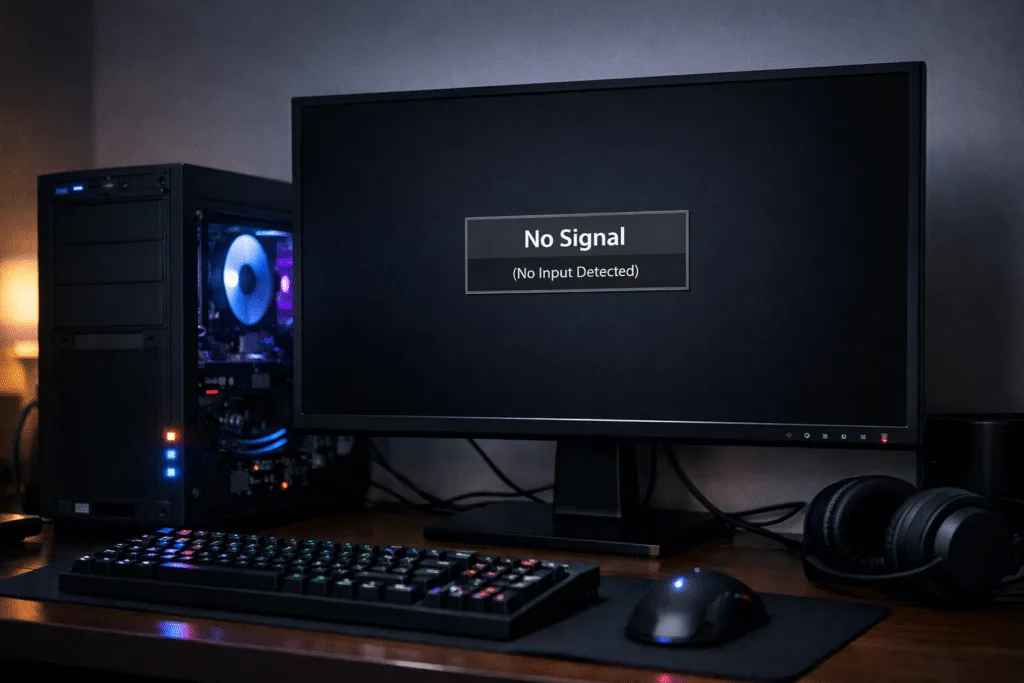
Desktop Turns ON but No DisplayOne of the most common and frustrating desktop computer problems is when the CPU turns ON, fans spin, LEDs glow, but there is NO DISPLAY on the monitor. The screen may remain black, show “No Signal,” or stay in standby mode even though the system appears to be running.
This issue can occur due to hardware faults, cable problems, BIOS errors, RAM issues, graphics card failures, or power supply problems. In this comprehensive guide, we will explain all possible causes and step-by-step solutions to fix the issue effectively.
Symptoms of “Desktop Turns ON but No Display”
Desktop Turns ON but No Display 2026
- CPU power light is ON
- Cabinet fans are spinning
- Hard disk LED may blink or stay idle
- No image on monitor
- Monitor shows:
- No Signal
- Check Cable
- Entering Power Save Mode
- No BIOS logo or boot screen
- Keyboard light may or may not glow
Step 1: Check Monitor and Display Cable
Desktop Turns ON but No Display 2026
1.1 Verify Monitor Power
- Ensure the monitor power cable is firmly connected
- Check if the monitor power LED is ON
- Try a different power socket
1.2 Check Display Cable (HDMI / VGA / DVI / DisplayPort)
- Remove and reconnect the cable securely
- Check for bent pins (especially VGA)
- Try a different display cable
- Test with another monitor if available
📌 Many no-display issues are caused by faulty or loose cables.
Step 2: Check Correct Display Input Source
Modern monitors support multiple inputs.
- Press the Input / Source button on the monitor
- Select the correct input (HDMI1, HDMI2, VGA, DP)
- Ensure it matches the port used on the CPU
Step 3: Power Drain (Basic Reset)
A power drain clears residual electricity.
Steps:
- Shut down the computer
- Remove power cable from CPU
- Remove monitor power cable
- Press and hold the CPU power button for 30 seconds
- Reconnect everything and power ON
Step 4: Check RAM (Most Common Cause)
Faulty or loose RAM is the number one reason for no display.

4.1 Reseat RAM
- Turn OFF power
- Open CPU cabinet
- Remove RAM stick
- Clean RAM gold pins with eraser
- Clean RAM slot with blower
- Insert RAM firmly until you hear a click
4.2 Test One RAM at a Time
- If multiple RAM sticks are installed:
- Test with one RAM only
- Try different RAM slots
📌 If the system displays after removing one RAM, the removed RAM is faulty.
Step 5: Check Graphics Card (GPU)
If your desktop has a dedicated graphics card, it could be the problem.
5.1 Reseat Graphics Card
- Remove the GPU carefully
- Clean PCIe slot
- Reinsert firmly
- Connect GPU power cable (6-pin / 8-pin)
5.2 Use Motherboard Display Output
- Remove the graphics card
- Connect monitor to motherboard HDMI/VGA
- Power ON the system
📌 If display works without GPU, the graphics card may be faulty.
Step 6: Check CPU Power Connections
Many users forget this crucial step.
- Ensure 24-pin ATX power cable is connected
- Ensure 4-pin or 8-pin CPU power cable is connected near the processor
- Loose CPU power cable = no display
Step 7: BIOS / CMOS Reset
Desktop Turns ON but No Display 2026
Incorrect BIOS settings can stop display output.
7.1 Reset Using CMOS Battery
- Power OFF the system
- Remove CMOS battery (coin cell)
- Wait 5–10 minutes
- Reinsert battery
- Power ON
7.2 Use CMOS Jumper (Advanced Users)
- Refer to motherboard manual
- Short CMOS jumper pins for a few seconds
📌 This resets BIOS to factory defaults.
Step 8: Check for Beep Codes or LED Indicators
Most motherboards provide diagnostic signals.
8.1 Beep Sounds
- No beep: Possible motherboard or PSU issue
- Continuous beeps: RAM problem
- Multiple beeps: GPU or CPU issue
8.2 Debug LEDs (Modern Motherboards)
- CPU LED
- DRAM LED
- VGA LED
- BOOT LED
The glowing LED indicates the faulty component.
Step 9: Check Power Supply Unit (PSU)
A weak or faulty PSU may power fans but not critical components.
Signs of PSU Problem:
- Random shutdowns
- No display after power surge
- Burning smell
- Old or low-watt PSU
Solution:
- Test with another known working PSU
- Ensure wattage is sufficient for GPU & CPU
Step 10: Check Processor (CPU)
CPU issues are rare but possible.

Possible CPU Problems:
- Bent pins (Intel/AMD)
- Overheating
- Improper installation
- Thermal paste issues
Steps:
- Remove CPU carefully
- Check for bent pins
- Clean and reapply thermal paste
- Reinstall CPU correctly
Step 11: Remove All Non-Essential Components
Test the system with minimum hardware.
Keep Only:
- Motherboard
- CPU + Cooler
- One RAM
- PSU
- Monitor
Remove:
- Hard disk / SSD
- DVD drive
- Extra RAM
- GPU (if onboard graphics exists)
📌 If display appears, reconnect components one by one.
Step 12: Motherboard Fault
If all components work individually, the motherboard may be faulty.
Common Motherboard Issues:
- Burnt ICs
- Power surge damage
- Short circuits
- Aging capacitors
Solution:
- Inspect motherboard visually
- Test components on another motherboard
- Replace motherboard if required
Step 13: Check Monitor Compatibility & Resolution
Rarely, resolution issues cause blank display.
- Connect monitor to another PC
- Reset monitor settings
- Try older monitor if available
Step 14: Environmental & External Factors
- Power fluctuations
- Moisture or humidity
- Dust buildup
- Insect damage inside cabinet
Regular cleaning helps prevent no-display issues.
Professional Diagnosis – When to Visit Service Center
Visit a technician if:
- Motherboard suspected faulty
- CPU pins damaged
- PSU voltage unstable
- BIOS chip corrupted
Preventive Tips
- Use UPS or surge protector
- Clean PC every 3–6 months
- Avoid cheap power supplies
- Handle components carefully
- Ensure proper airflow
Frequently Asked Questions (FAQ)
Q1: CPU is ON but keyboard light not glowing?
Likely motherboard or PSU issue.
Q2: No display but system works after restart?
RAM or BIOS issue.
Q3: Can HDMI cable cause no display?
Yes, faulty HDMI cables are common.
Q4: No display after Windows update?
Boot using safe mode or reset BIOS.

Conclusion
Desktop Turns ON but No Display 2026
When a desktop turns ON but shows no display, the issue is usually related to RAM, graphics card, power supply, cables, or BIOS settings. By following the step-by-step troubleshooting methods in this guide, you can identify and fix the problem without unnecessary replacements.
This guide is designed for beginners, technicians, and advanced users alike and follows 2026 troubleshooting standards.
If you want:
please subscribe to my website to click here